

Shopify conversion rate optimization, right on your product page
Most shoppers leave a product page with a question still open: will it arrive in time, will it fit, can I trust this shop? Our snippets answer those questions next to the buy button. Customise them visually, paste the code into your theme, done.
Free account · 2 credits to start · No card needed



Answer every doubt before it costs you the sale
Each doubt a buyer has on your product page, and the snippet that answers it.
“Will it arrive in time?”
Delivery Estimate: Shows the arrival date near the buy button, so buyers don’t have to look for your shipping page.
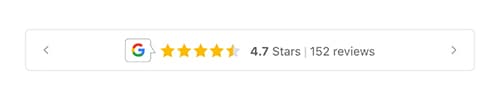
“Can I trust this shop?”
Review Badges: Your Google or Trustpilot rating next to the buy button, linked to your reviews, instead of hidden in the footer.
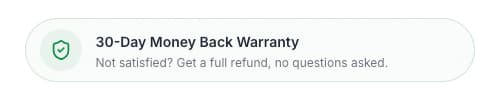
“What if it doesn’t work out?”
Trust Element: Your warranty, returns or money-back promise as a clear badge in the buy box, with your own icon and words.
“Can I pay the way I want?”
Payment Icons: The payment methods you accept, shown before checkout, so nobody leaves to find out.
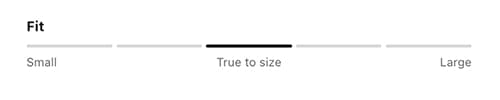
“Will it fit?”
Fit Guide: A simple scale from small to large that says whether the product runs true to size. Built to cut sizing doubts and returns.
“Is there a deal?”
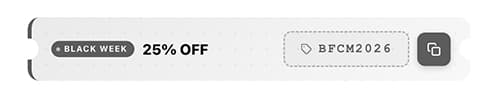
Coupon Code: Your current code right on the product page, copied with one tap, so buyers don’t leave to search for one.
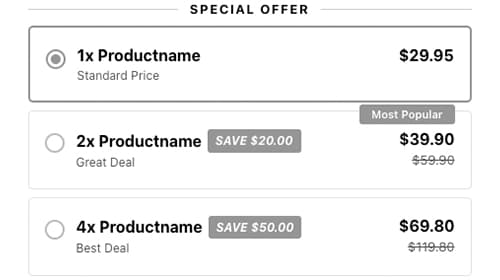
“Should I buy more than one?”
Bundle Discount Offer: Quantity breaks (1×, 2×, 4×) with the savings shown and the price calculated live, to raise the order value without an app.
“Where did the button go?”
Sticky Add-to-Cart: A floating add-to-cart button that stays in reach while shoppers scroll through photos and reviews on their phone.

Conversion features without the app tax
Most apps add a monthly fee and their own scripts. A snippet is just code in your theme.
No extra app scripts
Nothing loads from an app’s server. The snippet is part of your theme, like the rest of your product page.
No subscription, no lock-in
The code stays in your theme and keeps working, whether you use Ecom & Co. next month or not.
Looks like your shop
Set colors, fonts, text and spacing in a live preview, so the snippet fits your theme instead of looking bolted on.
No developer needed
You never touch the code. Copy it, paste it into a Custom Liquid block in the theme editor, save.
From idea to live in about a minute
- 1
Pick a snippet
Browse trust signals, urgency, upsells and buy box helpers. Pick the one that answers a doubt your buyers have.
- 2
Customise it visually
Adjust text, colors, behaviour and spacing in a live storefront preview. What you see is what your customers see.
- 3
Paste it into your theme
Copy the generated Liquid, add a Custom Liquid block to your product page in the theme editor and save.
How to increase the conversion rate of a Shopify store
Start where the buying decision happens: the product page.
1. Put the answers above the fold
On a phone, the first screen shows the photo, the title, the price and maybe the button. Everything a buyer needs to decide should follow right after: rating, delivery date, returns. If they have to scroll to the footer to find your shipping times, many won’t.
2. Remove the reasons not to buy
Often it isn’t the price that stops a buyer, but a question nobody answered. Show when it arrives, how returns work, which payment methods you take and whether it runs small. Each answered question is one less reason to open a new tab and compare.
3. Keep the button in reach
Long product pages push the add-to-cart button out of sight. A sticky button, and the price inside it, means the decision is always one tap away.
4. Give a reason to buy more
Quantity breaks and a matching add-on raise the order value from the same visitor, which makes every ad click worth more.
5. Change one thing, then measure
Add one element, wait for a few weeks of similar traffic and compare the conversion rate in Shopify Analytics. Then the next. That’s how you learn what your buyers respond to.
Getting more visitors to convert also makes ads cheaper per order. If you’re planning paid traffic, see how to build Google Ads for your Shopify store.
Questions, answered
What is Shopify conversion rate optimization?
Making more of your visitors buy. On Shopify, the biggest lever is usually the product page: answering the questions buyers have before they add to cart, making the button easy to reach and giving a reason to buy now or buy more.
What is a good conversion rate for a Shopify store?
It depends heavily on what you sell, your price and where your visitors come from, so averages from other stores say little about yours. Compare against your own numbers: measure your conversion rate before a change and again after a few weeks of similar traffic.
Do snippets slow down my store?
They’re small pieces of Liquid, CSS and JavaScript that live in your theme. There’s no app script loading from another server, which is what usually makes apps slow.
Do they work with my theme?
You add each snippet with a Custom Liquid block in the theme editor, which Online Store 2.0 themes like Dawn have on the product page. Colors, fonts, text and spacing are yours to set, so the snippet matches your theme.
Do I need to know how to code?
No. You set everything in a visual editor with a live preview, copy the generated code and paste it into a Custom Liquid block. It takes about a minute.
What happens if I stop using Ecom & Co.?
Nothing. The code sits in your theme and keeps working. There’s no subscription that switches it off.
What does it cost?
You can browse and customise every snippet without an account. Copying the code needs a free account, which comes with 2 credits and no card. After that you top up credits when you need them: no subscription, and credits never expire.
How do I know if a snippet works?
Change one thing at a time and compare your conversion rate in Shopify Analytics over a few weeks of similar traffic. Changing several things at once makes it impossible to tell which one helped.
Turn more visitors into buyers
Browse the snippets, customise them in a live preview and paste the code into your theme. No app to install.
Free account · 2 credits to start · No card needed. Already have an account? Sign in