

Shopify quantity discounts: buy more, save more, no app
Offer 2, 3 or more units at a better price right in the buy box. The snippet shows each tier with its savings and live price, adds the right quantity to the cart, and Shopify’s own automatic discounts take the money off at checkout.
Free account · 2 credits to start · No card needed
| Discount type | Percentage off |
| Tiers | 3 |
| Highlighted tier | Option 2, “Most Popular” |
| Savings badge | On |
More units per order, from the same visitor
You already paid to get the shopper to the product page. A quantity offer makes that visit worth more.
Higher order value
Every extra unit in the cart is revenue you didn’t have to buy another click for.
Made for products people use up
Socks, refills, skincare, coffee, gifts: anything customers would buy again or buy for others.
Savings they can see
A clear “Save $20” next to each option is easier to act on than a vague sale banner.
Pick the offer that fits your buy box
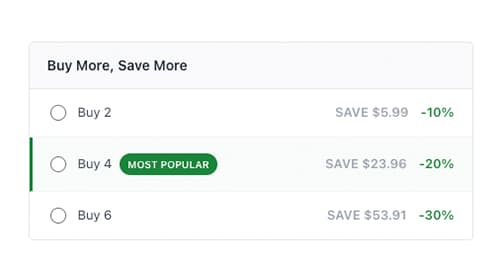
List: “Buy More, Save More”
Bundle Discount Offer 1. Rows for your tiers (for example Buy 2, Buy 3, Buy 4) with the savings in money and percent. The customer can pick a variant for each unit, so two colors in one order are no problem.
Cards: one per quantity
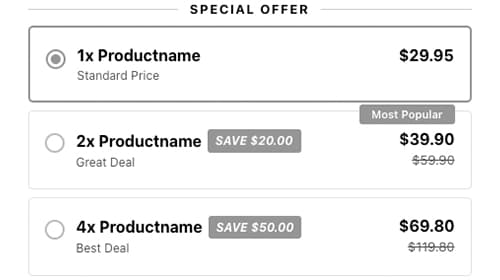
Bundle Discount Offer 2. One card per quantity with a subtitle (“Standard Price”, “Good Deal”, “Best Deal”), the crossed-out regular price, a savings badge and a variant picker for each unit.
What you can set
Percent or fixed amount
A percentage off the bundle price, or a fixed amount off the bundle total.
Two or three tiers
Your own quantities and discounts per tier.
Highlight a tier
Mark one option with a badge such as “Most Popular”, and choose which one is pre-selected.
Live prices
Prices and savings are calculated from the selected variant’s price, in your store’s currency.
Add to cart and Buy it now
The selected quantity goes into the cart through your theme’s buttons, including Buy it now.
Your look
Accent color, corner shape, shadow, titles, labels and spacing.
Set up quantity discounts in four steps
Three steps for the offer, one in Shopify for the discount.
- 1
Design the offer
Choose the layout, the tiers and the discounts. The preview shows the prices as customers will see them.
- 2
Copy the code
Copy the generated Liquid. Next to it, the tool lists the exact discounts to create in Shopify for your tiers.
- 3
Paste it into your product page
In the theme editor, add a Custom Liquid block to your product page, paste the code and save.
- 4
Create the discounts in Shopify
For each discounted tier: Discounts → Create discount → Amount off products, method Automatic, with the value and minimum quantity from the list.
Quantity discounts, tiered pricing and bundles
What the terms mean, and how to set tiers that make money.
Same thing, many names
Quantity breaks, volume discounts, bulk discounts and tiered pricing all describe the same idea for a shop: the more units of one product someone buys, the lower the price per unit. Bundles usually mean something else: different products sold together.
How the discount gets to checkout
Shopify calculates the final price in its checkout, and a theme can’t change it. So a quantity offer has two parts: the offer on the product page, which this snippet shows, and a discount in Shopify, which takes the money off. Shopify’s automatic discounts (“Amount off products” with a minimum quantity) do that without a code for the customer to enter.
How to choose your tiers
- Keep it to two or three tiers. More options make the choice harder, not easier.
- Make the middle tier the obvious pick. Highlight it, so it reads as the recommended choice.
- Check the margin. A 20% discount on three units has to leave enough after product, shipping and ad costs. Shipping one parcel with three units usually costs less than three parcels.
- Show the saving in money. “Save $20” is easier to judge than “-20%” on a price the shopper has to calculate.
| Quantity discount app | Bundle Discount snippet | |
|---|---|---|
| Where it lives | In the app, loaded by its script | In your theme’s code |
| Cost | Free plan or a monthly fee | No subscription |
| Discount at checkout | Depends on the app | Shopify’s own automatic discounts |
| If you stop using it | The offer goes away | The offer stays in your theme |
Before you set it up
Create the discounts, or the offer is only a promise. The snippet shows savings and adds units to the cart. The money comes off through the automatic discounts you create in Shopify, one per discounted tier, matching the snippet’s settings.
Limit each discount to the right products. When you create an automatic discount, choose which products it applies to, so a minimum quantity of 2 doesn’t also discount two different products you didn’t plan for.
Product pages only. The offer belongs in the buy box of a product page and uses that product’s variants and prices.
Questions, answered
What are quantity breaks?
Prices that drop when a customer buys more of the same product: for example 10% off for 2, 20% off for 3. They’re also called quantity discounts, volume discounts, bulk discounts or tiered pricing.
How do I set up tiered pricing on Shopify?
Create one automatic discount per tier in Shopify (Discounts → Create discount → Amount off products, method Automatic, with a minimum quantity). Then show the tiers on the product page, so customers see the offer before they add to cart. The snippet does the showing and lists the exact discounts to create.
Does the snippet apply the discount by itself?
No. A theme can’t change prices at checkout; Shopify does that. The snippet shows the offer, calculates the prices and adds the right quantity to the cart. Shopify’s automatic discounts then take the money off. Without them, the offer would show savings the checkout doesn’t give.
Can customers mix variants?
Yes. In both layouts, every unit of a multi-unit tier gets its own variant selector, so a customer can order two colors or two sizes in one go.
Does it work with the Buy it now button?
Yes. When a tier is selected, both the add-to-cart button and the Buy it now button add that quantity.
Is this the same as a bundle app?
Not quite. Bundle apps usually combine different products into one bundle. This snippet is for more of the same product, the classic “buy 2, save 10%”.
Do automatic discounts work together with discount codes?
That depends on the combination settings of each discount in Shopify. Check them when you create the tier discounts, so a coupon code and your quantity discount work together the way you want.
What does it cost?
You can browse and customise every snippet without an account. Copying the code needs a free account, which comes with 2 credits and no card. After that you top up credits when you need them: no subscription, and credits never expire. Shopify’s automatic discounts are part of Shopify.
Sell two instead of one
Design a quantity offer in a live preview, paste it into your theme and create the matching discounts in Shopify.
Free account · 2 credits to start · No card needed. Already have an account? Sign in