

Shopify trust badges, right next to your buy button
Show your guarantee, the payment methods you accept and your review rating where buyers decide: in the buy box. Three snippets you set up in a visual editor and paste into your theme. No app, no monthly fee.
Free account · 2 credits to start · No card needed


Trust badges work when they answer a real doubt
A first-time buyer doesn’t know your shop. A few true facts next to the button make the decision easier.
New shops need proof
Big brands get the benefit of the doubt. A smaller shop has to show why it’s safe to buy: returns, payment, what other customers say.
Placement beats quantity
Badges under the add-to-cart button are seen at the moment buyers are about to click. A row of logos in the footer often isn’t seen at all.
Only true badges help
A “secure” seal you don’t have or a rating you made up misleads buyers and costs trust when they notice. Show what you can back up.
Guarantee, payment and reviews
Each one is its own snippet. Use one, two or all three.
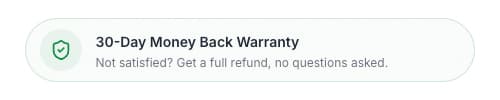
Your promise as a badge
Trust Element
- Your heading and text: “30-day returns”, “2-year warranty”, “Ships from Zurich”.
- 14 icons to choose from: shield, returns, delivery truck, padlock, award, clock and more.
- An optional link, e.g. to your returns policy.
- Bordered, filled or minimal style, your accent color and corner shape.
The payment methods you accept
Payment Icons
- Synced from your store: shows the payment methods that are active in your Shopify checkout.
- Or pick them yourself from 24 icons, from Visa, PayPal and Apple Pay to Klarna, Shop Pay and TWINT.
- In color or black and white, with your own size and spacing.
Your rating, where it counts
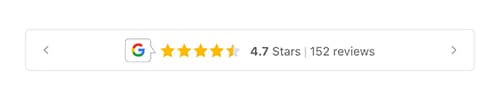
Review Badges
- Your Google rating with the number of reviews, your Trustpilot rating, or both in a rotating carousel.
- Each badge links to your review page, so buyers can check.
- You enter the rating yourself and update it when it changes.
Add trust badges to Shopify in three steps
- 1
Customise them
Pick a badge, write your text, choose icons and colors. The live preview shows exactly what buyers will see.
- 2
Copy the code
Copy the generated Liquid. It contains only what you set, nothing that loads from our servers.
- 3
Paste it under the button
In the theme editor, add a Custom Liquid block to your product page right below the add-to-cart button, paste, save.
How to add trust badges to Shopify
Three ways to do it, and what makes a badge worth showing.
Check your theme first
Many themes show payment icons in the footer, and some have a text block for a short promise. That’s a start, but the footer is where few buyers look, and theme blocks rarely let you add icons, links or ratings.
App or snippet
Trust badge apps add the badges for you, with their own design and their own script on every page. Snippets do the same job with code that sits in your theme: you set the look once, and it stays even if you stop using Ecom & Co.
What makes a good trust badge
- It’s specific. “30-day free returns” answers a question. “Premium quality” doesn’t.
- It’s true. Only show payment methods you accept and ratings you really have.
- It’s close to the button. Directly under add to cart, not in the footer.
- There are only a few. Two or three badges are read; a wall of logos is skipped.
| Trust badge app | Trust snippets | |
|---|---|---|
| Where it lives | In the app, loaded by its script | In your theme’s code |
| Cost | Free plan or a monthly fee | No subscription |
| Look | The app’s designs and options | Your text, icons, colors and corners |
| If you stop using it | The badges go away | The badges stay in your theme |
What the snippets do and don’t do
Product pages only. The snippets are built for the buy box of your product pages. The checkout itself is run by Shopify.
Ratings are entered, not pulled. The review badge shows the rating and review count you enter, linked to your review page. It doesn’t connect to Google or Trustpilot. Showing a Trustpilot rating? Read what Trustpilot’s widgets cost and what its guidelines say.
Payment icons follow your store. With sync on, the icons are the payment methods Shopify reports as enabled for your store, so they change when your checkout does.
Questions, answered
What are trust badges?
Small signs on your store that answer the questions a first-time buyer has: can I return it, is my payment safe, do other people like this shop? On a product page they’re usually a guarantee or returns badge, the accepted payment methods and a review rating.
Where should trust badges go on a Shopify store?
Right under or next to the add-to-cart button, where the buying decision happens. A row of badges in the footer is easy to miss. Keep it to a few that answer real questions, so they don’t crowd the buy box.
Do trust badges increase conversions?
They help when they answer a doubt your buyers actually have, and when they’re true. Add one at a time and compare your conversion rate in Shopify Analytics over a few weeks of similar traffic, so you know which one made the difference.
Can I add trust badges to the Shopify checkout?
These snippets go on your product page, where they do the most work. The checkout is run by Shopify, and what you can add there depends on your Shopify plan.
Do the payment icons update by themselves?
Yes, with “Sync payment methods from store” switched on (the default) the snippet shows the payment methods your store has enabled. Switch it off to pick the icons by hand.
Is the review rating live?
No. You enter your current Google or Trustpilot rating and the number of reviews in the editor, and the badge links to your review page. Update it when your rating changes.
Do I need an app for trust badges?
No. The snippets are code that lives in your theme. You paste them into a Custom Liquid block once, and there’s no app to install or pay for every month.
What does it cost?
You can browse and customise every snippet without an account. Copying the code needs a free account, which comes with 2 credits and no card. After that you top up credits when you need them: no subscription, and credits never expire.
Give first-time buyers a reason to trust you
Set up your guarantee, payment and review badges in a live preview, then paste them into your theme.
Free account · 2 credits to start · No card needed. Already have an account? Sign in